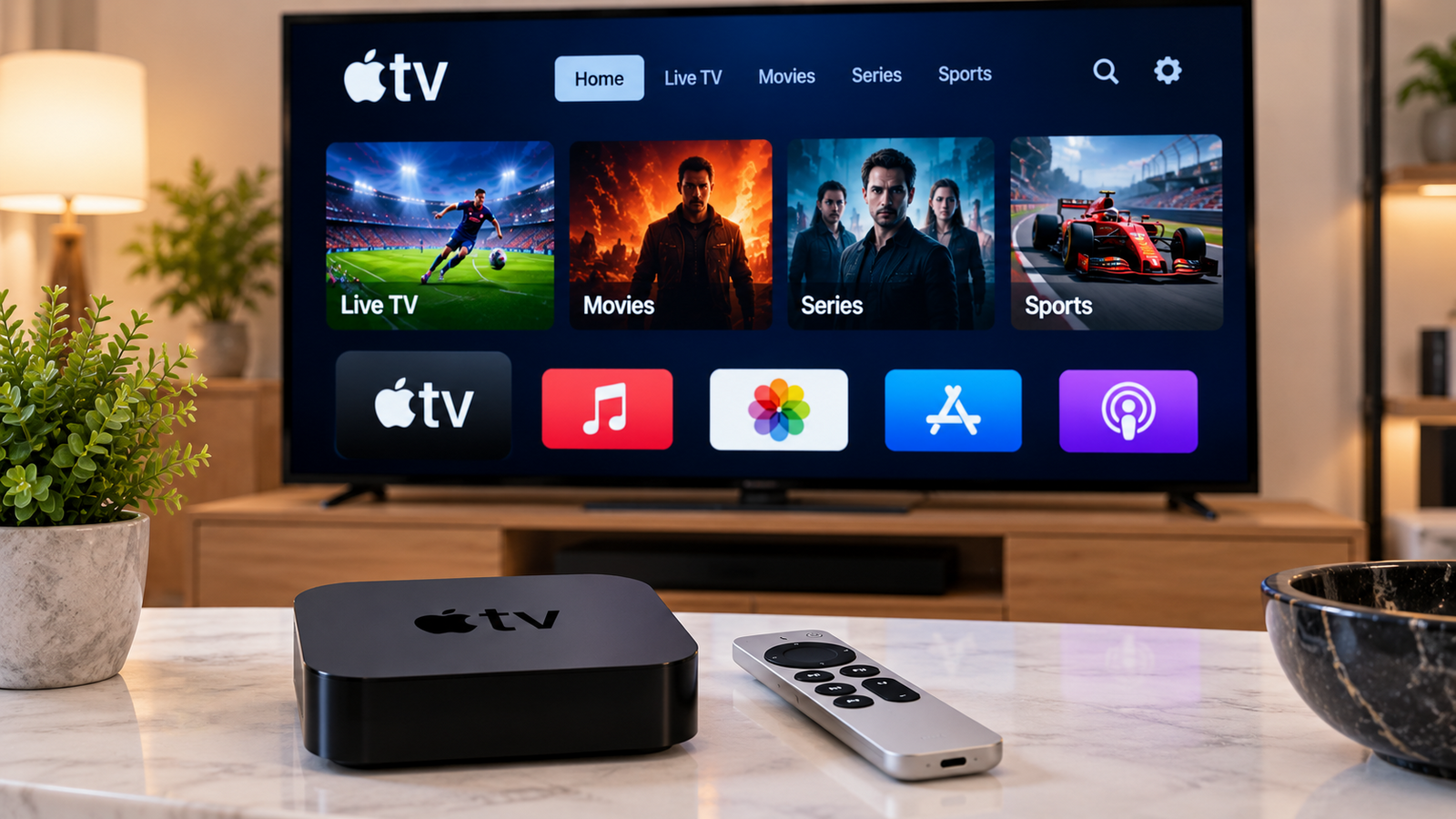
Apple TV is a popular streaming device for people who want a clean interface, reliable performance, and access to a wide range of entertainment apps. It can also be used with compatible IPTV players, allowing viewers to watch live television, sports, movies, and series through an internet connection.
Before configuring IPTV on Apple TV, it is important to understand app compatibility, internet requirements, login methods, and the basic steps involved in creating a stable setup.
Can You Watch IPTV on Apple TV?
Yes, IPTV can be used on Apple TV when a compatible IPTV player is available through the App Store.
The IPTV application itself normally acts as a player. It does not automatically provide television content. Instead, users typically enter subscription or playlist details supplied by their IPTV service.
Depending on the player, configuration may involve:
The exact setup method depends on both the application and the service.
Choose a Compatible IPTV Player
The first step is finding an IPTV player that supports Apple TV.
Different applications offer different interfaces and features, so it is worth checking what each player supports before installing it.
Useful features may include:
-
Live TV categories
-
Electronic program guide support
-
Movies and series sections
-
Favourite channels
-
Search functionality
-
Recently watched content
-
Multiple playlist support
A simple, stable application is often more useful than one filled with features you never use.
Check Your IPTV Subscription Details
Before opening the application, make sure you have the correct account information from your IPTV provider.
Entering one incorrect character can prevent the application from loading channels or connecting to the service.
Check the following carefully:
-
Username
-
Password
-
Server or portal address
-
Playlist URL
-
Expiration information
If your provider supplies installation instructions, follow the format recommended for your selected player.
Viewers comparing Swedish IPTV services and compatible device guides can also review information from First Class IPTV when researching setup options for Apple TV and other streaming devices.
Install the IPTV App
Open the App Store on Apple TV and search for the IPTV player you want to use.
Download the official application and open it once installation is complete.
The player may ask you to add a playlist or account. Enter the information provided by your service and allow the application time to load the available content.
Large playlists may take longer to synchronize during the first setup.
Check Your Internet Connection
A stable internet connection is essential for IPTV streaming.
Apple TV can connect through Wi-Fi, while certain models and setups may also support wired Ethernet connectivity.
Even when internet speed appears sufficient, an unstable connection can still cause:
-
Buffering
-
Freezing
-
Delayed channel loading
-
Reduced video quality
-
Playback interruptions
If streaming problems appear frequently, test your network before changing IPTV applications.
Wi-Fi Placement Matters
Apple TV is often positioned close to the television, but that location may not always provide the strongest Wi-Fi signal.
Furniture, walls, electronic devices, and distance from the router can reduce wireless performance.
If possible, place your router in an open location and avoid hiding it inside cabinets.
For larger homes, a mesh Wi-Fi system can help improve wireless coverage in rooms located far from the main router.
Use Ethernet When Appropriate
A wired connection can provide greater consistency because it is not affected by the same wireless interference as Wi-Fi.
If your Apple TV model and network setup allow Ethernet, connecting directly to the router may help when wireless performance is inconsistent.
However, a good Wi-Fi connection can still provide reliable streaming when signal strength is strong.
Organize Channels and Favourites
After the IPTV player loads your content, take some time to organize the interface.
Many IPTV applications contain numerous categories, which can make navigation difficult if everything remains in the default order.
Useful features may include:
Favourite Channels
Add frequently watched channels to a favourites list so you can access them quickly.
Channel Categories
Keep sports, entertainment, news, movies, and other categories organized where the player supports this function.
Search
Use the built-in search tool rather than manually scrolling through long lists.
Small organizational changes can make daily viewing considerably easier.
Use the Electronic Program Guide
An electronic program guide, often called an EPG, displays scheduled television programming.
When supported by both the IPTV service and player, an EPG can help users see:
-
Current programs
-
Upcoming shows
-
Program start times
-
Channel schedules
If the guide is missing or displays incorrect information, refresh the EPG data through the player settings if that option is available.
Keep Apple TV Updated
Apple periodically releases software updates that can improve performance, security, and app compatibility.
Keeping tvOS updated can reduce problems caused by outdated system software.
You should also update the IPTV player whenever an official update becomes available.
Old app versions can occasionally cause login errors, crashes, or playback issues after changes to the operating system.
What to Do if IPTV Buffers on Apple TV
Buffering can have several causes, so troubleshooting should be systematic.
Restart Apple TV
Restarting the device can clear temporary software problems and background processes.
Restart the Router
A router restart can refresh the network connection and resolve some temporary connectivity issues.
Test Another Channel
If only one channel buffers while others work normally, the problem may be limited to that individual stream.
Check Other Network Activity
Large downloads, cloud backups, online gaming, and several simultaneous video streams may reduce available bandwidth.
Test Another Device
Try the same account on another compatible device. If playback works normally there, the issue may relate to the Apple TV application or local network connection.
Avoid Installing Too Many IPTV Apps
Installing several IPTV players can be useful when comparing interfaces, but keeping many unused applications provides little benefit.
Once you find a player that works well, maintaining a simple setup can make troubleshooting easier.
Too many unnecessary applications can also make the device interface more cluttered.
Check Stream Quality
Different channels may be available in different resolutions.
Higher-quality streams generally require more bandwidth and device resources. If a 4K or high-bitrate stream repeatedly buffers while HD content plays smoothly, the available network bandwidth may be a factor.
Choosing a suitable quality level can sometimes provide a more stable experience than always selecting the highest resolution available.
Apple TV Compared With a Smart TV App
Both approaches can work well.
Apple TV may provide a smoother and more consistent interface than the built-in software on some older televisions. It can also be upgraded separately without replacing the TV itself.
A Smart TV app may be more convenient when you want fewer devices and cables.
The better choice depends on the television, available applications, viewing habits, and personal preference.
Final Thoughts
Setting up IPTV on Apple TV is relatively straightforward when you have a compatible player, correct account information, and a stable internet connection.
Start by selecting an appropriate IPTV application, enter the configuration details carefully, organize your favourite channels, and keep both the app and Apple TV software updated.
If problems occur, check the network, test different channels, restart the equipment, and compare performance on another device before making major changes. A simple and well-maintained setup can provide a more consistent IPTV experience across live television, sports, movies, and series.


 Search in Classifieds
 Search in Groups
 Search in Polls
 Search in Members
 Search in Members
 Search in News
 Search in Businesses
 Search in Contests
 Search in Events
 Search in Music Albums
 Search in Music Songs
 Search in Quotes
 Search in Site Team



Share this page with your family and friends.